


Step 2: Install a Compiler#
Objective: Install MinGW to compile an .c file
and then create an .exe executable.
2.1: Install a GCC compiler#
We will use MinGW to compile our assembly projects
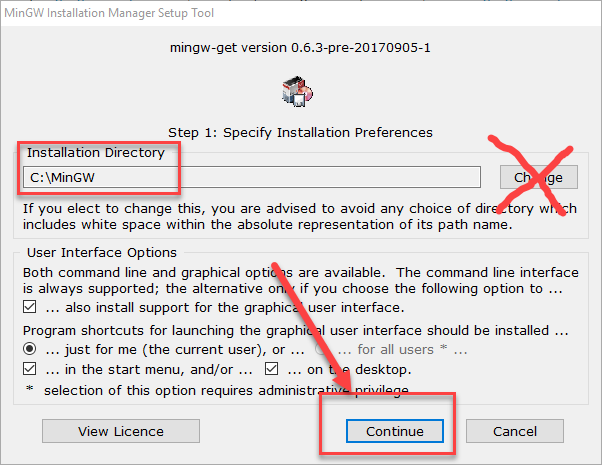
Find the installer on MinGW’s site or download it from this site directly.
mingw-get-setup-2017-09-06.exeNote the default the installation directory and then press
Continue.Caution
MinGW might not work correctly if you install it in another directory other than the default.
So, we recommend using the default installation directory.
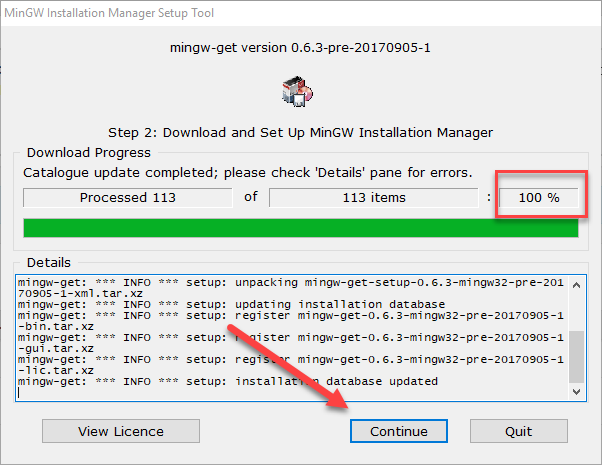
The installer will download and install MinGW.
Verify that the installer downloaded and installed all selected items.
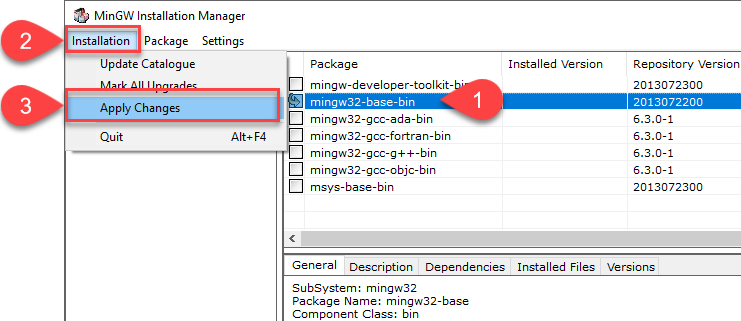
Select
mingw32-base-binand apply changes.From the menu:
Installation ➜ Apply ChangesThe installer might take a while depending on your internet connection.
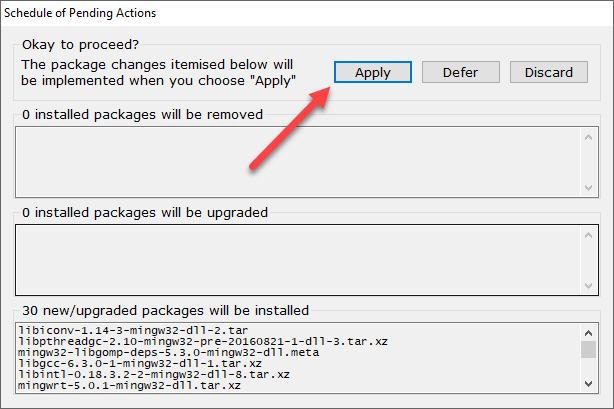
Press the
Closebutton when the packages finish downloading.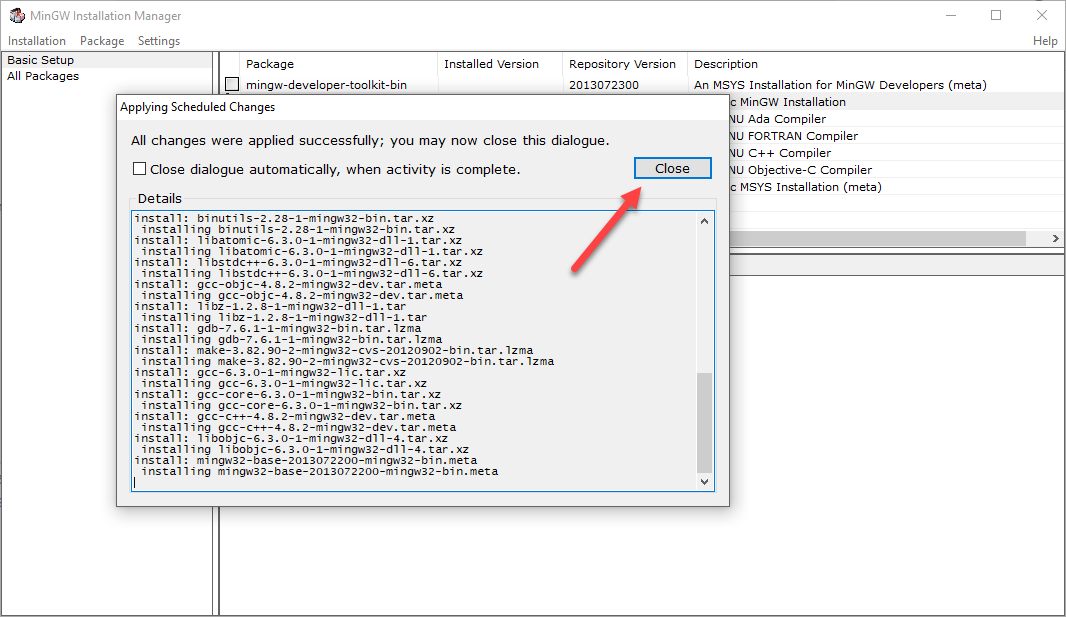
Verify that
ming32-base-bininstalled.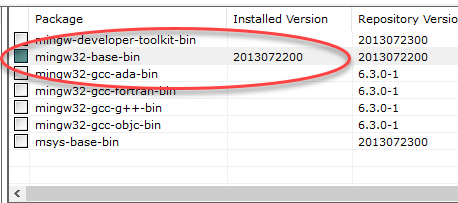
You can now close the installer window.
2.2: Set the path to GCC#
Windows needs to know where to find gcc.exe, which it will do by setting
the path=C:\MinGW\bin;%path%
Tip
Set the path to your compiler in the Windows path so that all applications can find it.
Otherwise, you have to specify the full path to the compiler.
Verify the programs execute in CMD#
Note
This path is set ONLY for this CMD instance. You have to run the command again when you close the CMD window. Or, you can specify the absolute path to the file.
You can add it permanently the System Environment Variables.
Open up Command Prompt (CMD)
Set the temporary path by executing:
path=C:\MinGW\bin;%path%Verify the path set correctly
Type:
echo %path%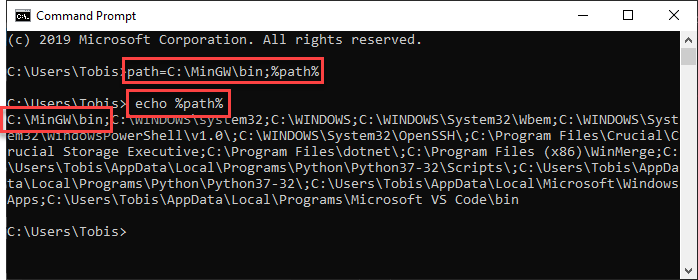
Type:
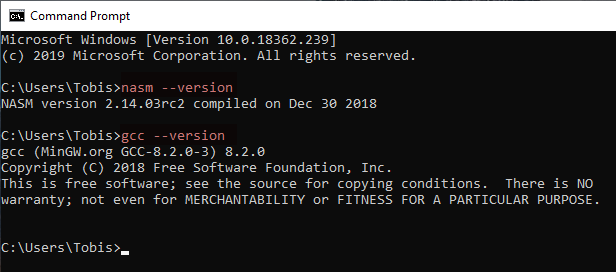
gcc --versionVerify that it displays the file version.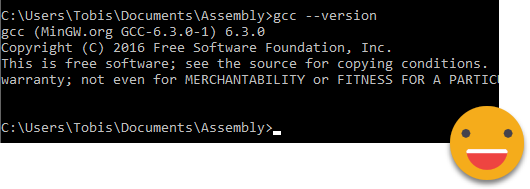
Errors#
If you get a not recognized error, then the path is not set correctly
or you installed MinGW in a different directory.
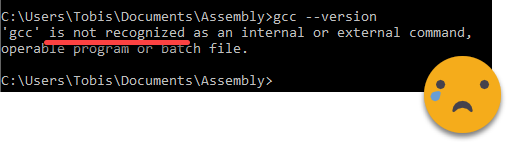
Try executing it using the full path:
C:\MinGW\bin\gcc --versionVerify the installation path:
dir C:\MinGW\bin
Set path in Windows System (standard user)#
Open the Environment Variables for your account
In the start menu type:
edit environment variables for your account
Select on
Pathand then click theEditbutton.Add an new path to
C:\MinGW\binOr, append
;C:\MinGW\binto the end of another path
Set path in Windows System (with Admin)#
Open the
Advanced System Propertiesin Windows. There are several ways:Copy and paste one of these commands to
Windows ExplorerorStart MenuAdvanced System Settings
-OR-C:\Windows\System32\SystemPropertiesAdvanced.exe
Navigate from the control panel:
Control Panel > System and Security > System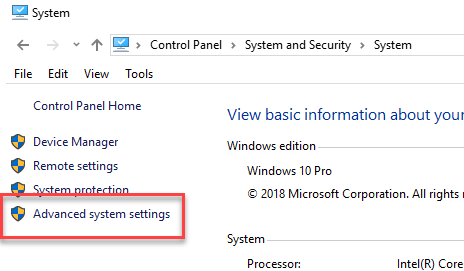
Click on the Environment Variables button
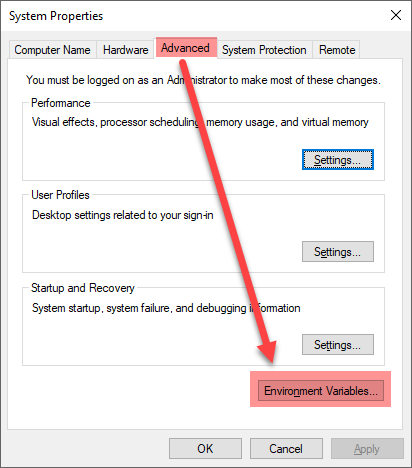
Select
Pathunder User variables and then click on the Edit button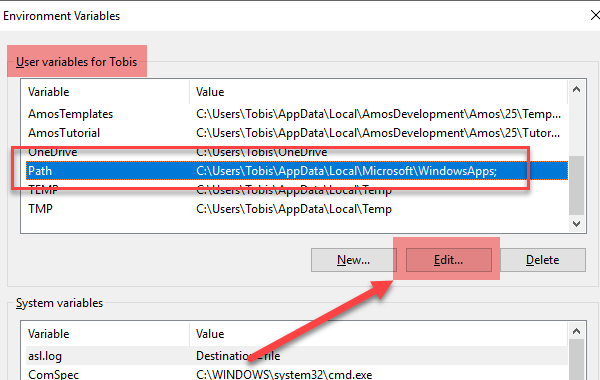
Click on New and then add a variable for the bin folder of GCC:
C:\MinGW\bin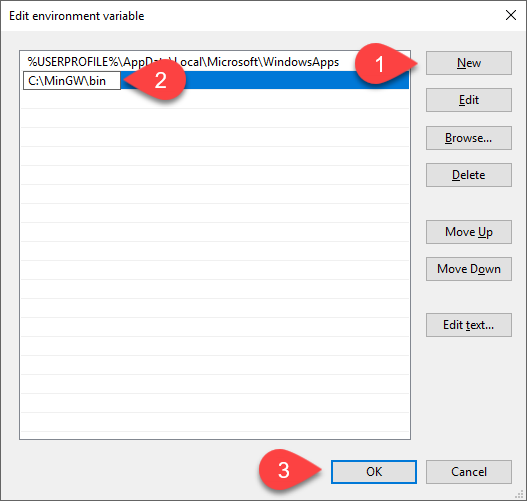
Press OK on all windows
Close and reopen the CMD windows to get a new prompt.
Verify that GCC display the versions correctly before continuing.
Source & license
Reproduced verbatim, without modification from © 2022, BilimEdtech Labs, licensed under Creative Commons Attribution 4.0 International (CC BY 4.0).
Source page: https://labs.bilimedtech.com/c/windows-install/2.html
See LICENSE for the full license text.